Calculator Programs Disappeared or No Longer Work
In the rare case that your programs get lost or corrupted, or the TI-84 calculator crashes or the batteries are removed without the backup battery, the calculator will perform a “RAM Reset” which wipes all data in RAM.
This shouldn’t happen very often, but is known to occasionally occur, particularly when running advanced assembly programs. The RAM that is wiped may include programs, lists, formulas, and all variables — unless the programs are “archived” which stores them in ROM memory instead of RAM. ROM memory does not get reset under normal circumstances.
Restoring Your Programs From a Group
Depending on how the programs were loaded onto your calculator, you may possibly have a backup copy stored in a “Group” on the calculator. A “Group” is similar to a ZIP file — multiple programs can be saved to a group, but they cannot be run from there, only stored. To restore programs from a saved group:
Turn your calculator on
Access the
UNGROUPmenu by pressing 2nd, MEM, 8, →If you see one or more groups in this list, you can press ENTER to “unzip” the group and put all the contents back into the calculator’s RAM.
If you happen to already have programs present with the same names, it will ask you if you want to overwrite them.
If No Groups are Showing
If you do not see a saved group in the list that you can restore from, you can look for a separate backup copy of your programs explained in the section below. Otherwise, you will need to connect your calculator to a computer and reinstall the programs from your computer. Instructions for doing this will be coming soon.
Restoring Programs From a Backup Copy
While backing up programs into a “Group” is generally the best method, sometimes a 2nd copy of a program can be saved on your calculator which you can use if the original program gets lost.
Sometimes these backup copies are saved with a θ character at the start of the name, indicating it’s a backup copy. These names will always be sorted at the bottom of the PRGM list. Here’s one example:
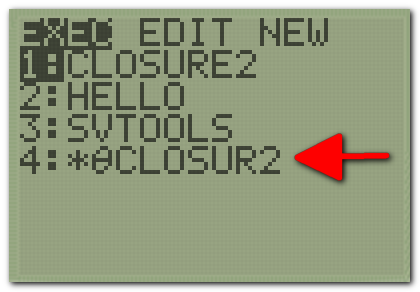
The program may be stored in the calculator’s “Archive” which is indicated by a * symbol when scrolling through the PRGM list. You will not be able to run the program while it’s stored in the Archive.
To unarchive a program so that you can run it:
Press 2nd, MEM, 2, 7. A list of your programs will appear.
Scroll down the list to find the archived program with a
*at the start of its name.Press ENTER and the program will be unarchived. The
*should disappear.Press PRGM, and find the program in the list. Press ENTER, ENTER to run it.
Renaming a Program
In some cases (especially with the SVTOOLS program), it may not run correctly without the correct name. While you cannot “rename” a program directly on the calculator, you can COPY programs into a program with a new name. To do this:
Ensure no existing program is using the name you want to use. Delete the existing one if so.
Ensure the program you would like to copy is “Unarchived”. Follow the steps in the section above to do this.
Create a new blank program with the name you want to use. Press PGRM, →, →, ENTER to select
Create New.Press 2nd, RCL, PRGM, and then choose the program you would like to copy. Pressing ENTER will copy all of the code from that program into your new program.
Press 2nd, QUIT to save your changes.
You can now run your new program and it will have the same code as the program you copied from.
Creating a Backup Copy of Programs
You can create a backup copy of programs in your calculator “Archive” by creating a “group” which is similar to a ZIP file. It can contain multiple programs, however the programs cannot be executed from there, only stored until you’re ready to extract or “unzip” them.
Programs saved inside a “Group” will not be erased when a RAM reset occurs, and are less likely to get modified or corrupted there, making it a useful backup location.
Here’s how to create a group:
Turn your calculator on
Access the
GROUPmenu by pressing 2nd, MEM, 8Press ENTER to create a new group.
Give the group a name such as
BACKUPSelect all the programs that you would like to add to the group by choosing option 3 and then using the arrow keys to scroll through the list. Press ENTER to mark each program that should be added to the group.
Select
DONEby pressing →, ENTER. Your group will be created and saved in ROM memory, and should not be lost when a RAM reset occurs.
You can follow the instructions above if you ever need to restore the programs from your saved group.